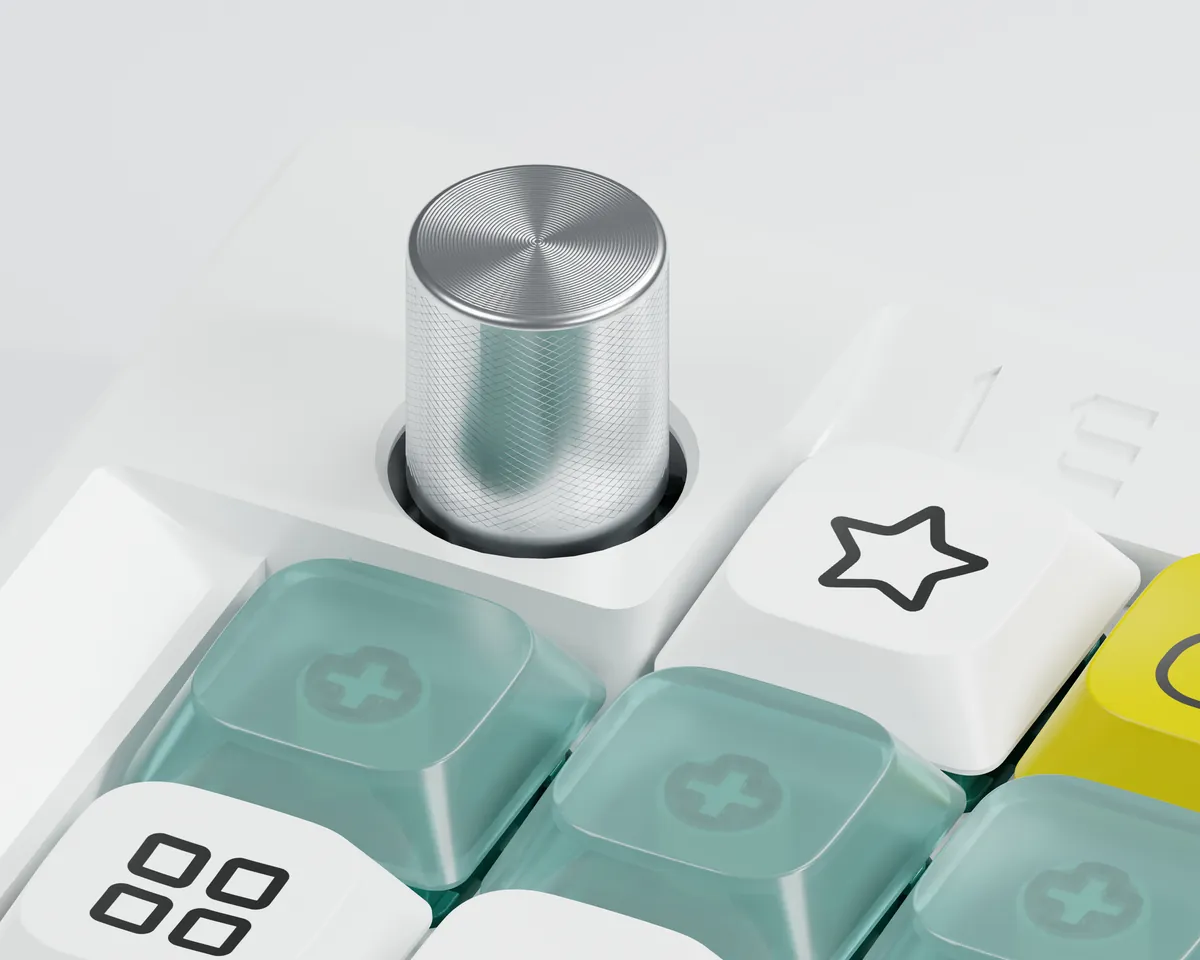
Kailh encoder
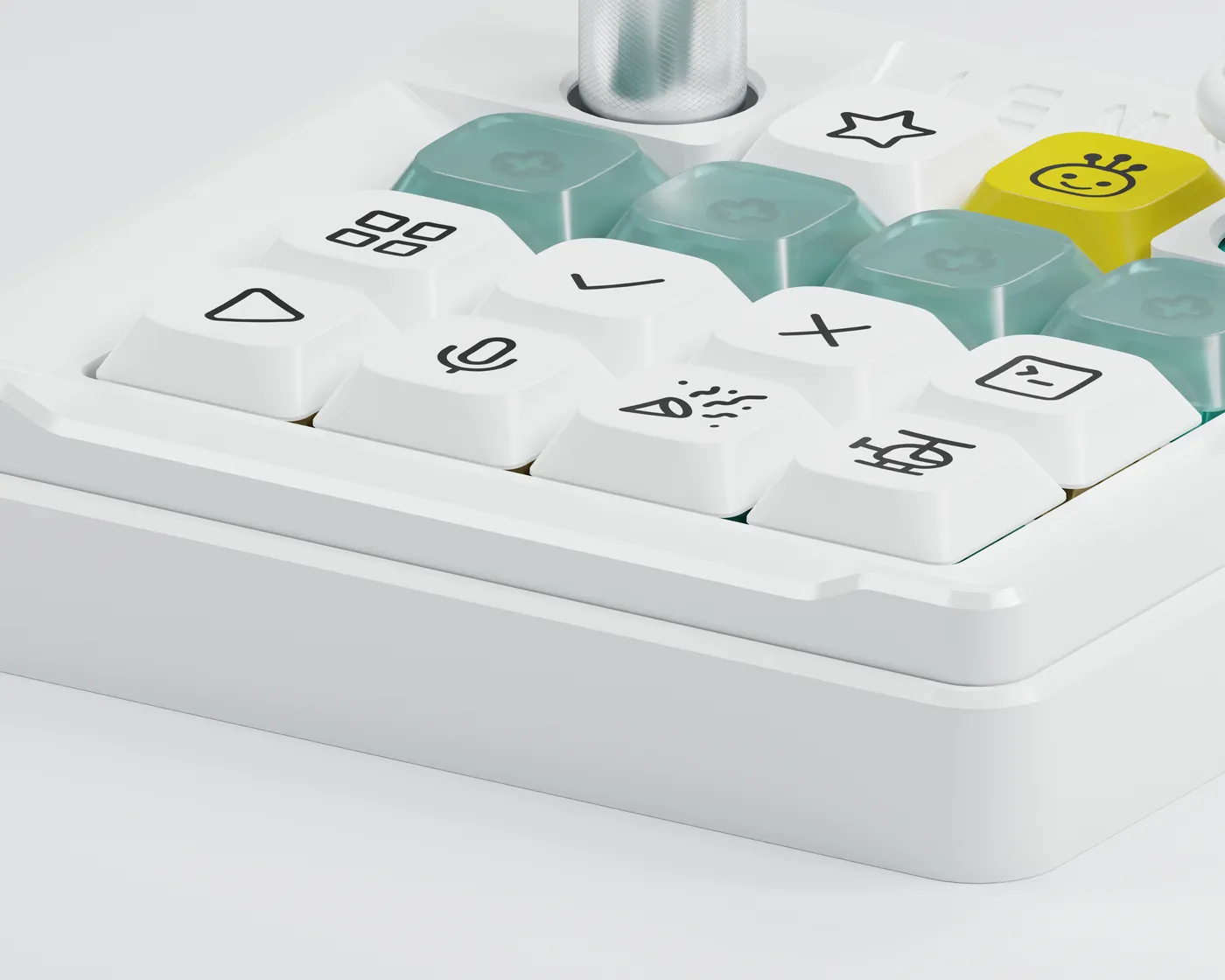
24 crisp detents per turn, and it clicks. Set clockwise, counter-clockwise and press separately: volume, tracks, mute, or the setting you reach for most.
AI Control / Desktop Companion
IEMY K01 · AI agent control pad
Four clear keys that show when your agents are busy, and when they need you.
clear status keys
See progress · step in when needed
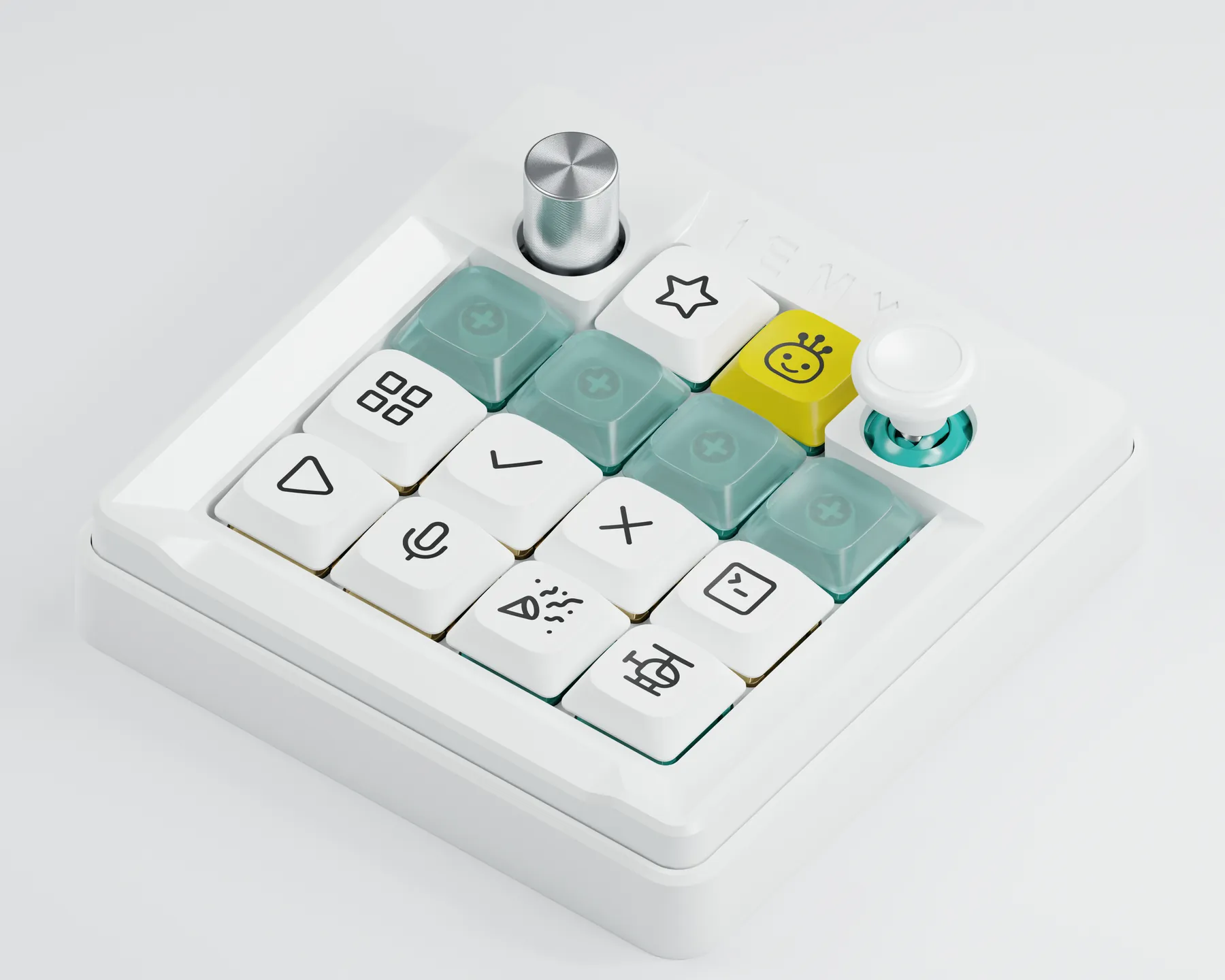 14 keys · knob · joystick
02/ Visible Intelligence
Four clear keys bring the progress hidden in your windows onto your desk. Less tab-switching, more calm.
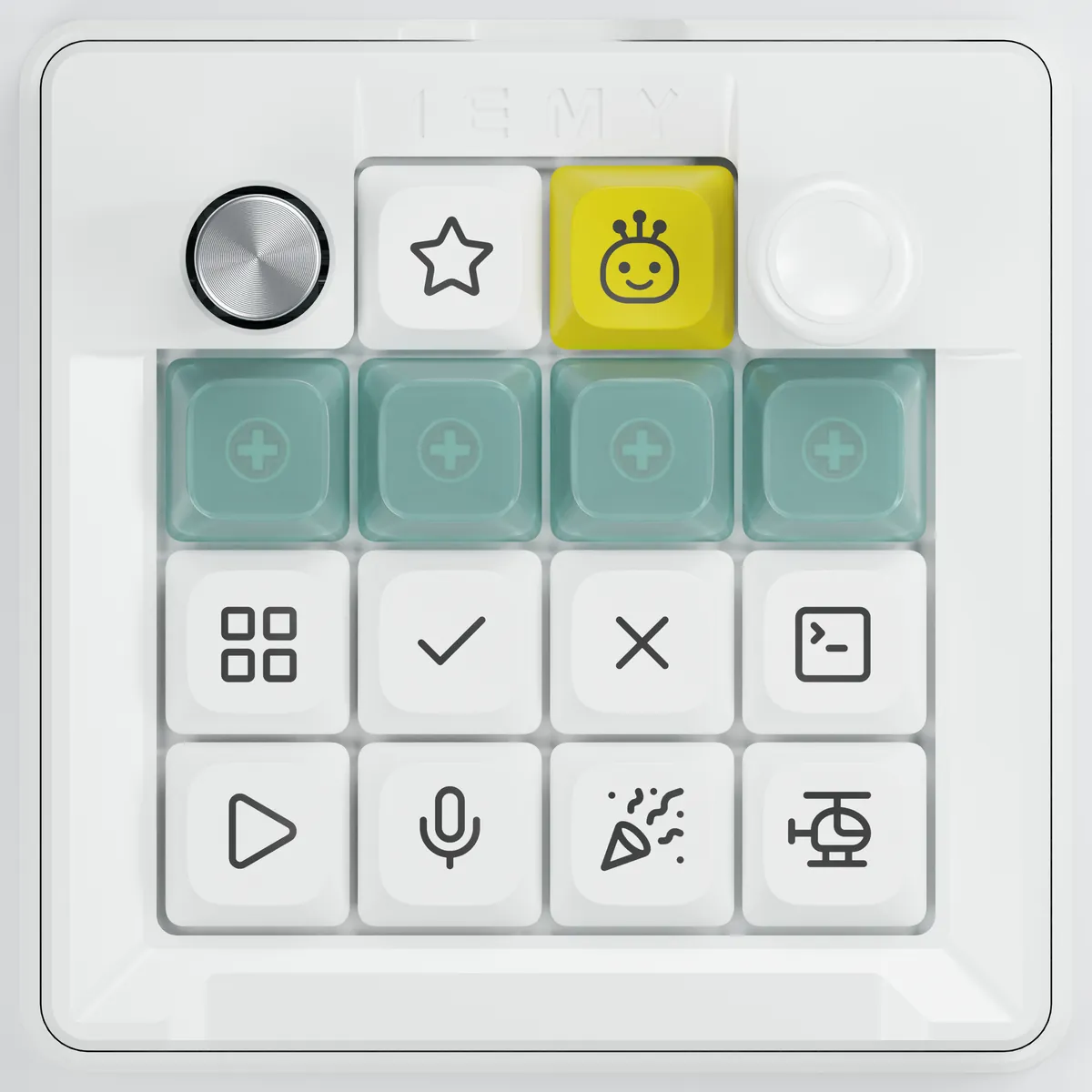
Four places for four kinds of work. Tap a card to see the key change.
Each new task takes the next free clear key and keeps it. When a task ends, its key frees up; with more than four, the one finished longest ago gives way.
Each clear key belongs to one AI tool and cycles through its tasks. Switch between the two in the app at any time.
Lighting is illustrative; product photos show the keys unlit. Status lights need the IEMY app running and a supported AI tool connected (see “Works with” below).
03/ Your Desk, In Flow
Code, research, writing: each task keeps its own place.
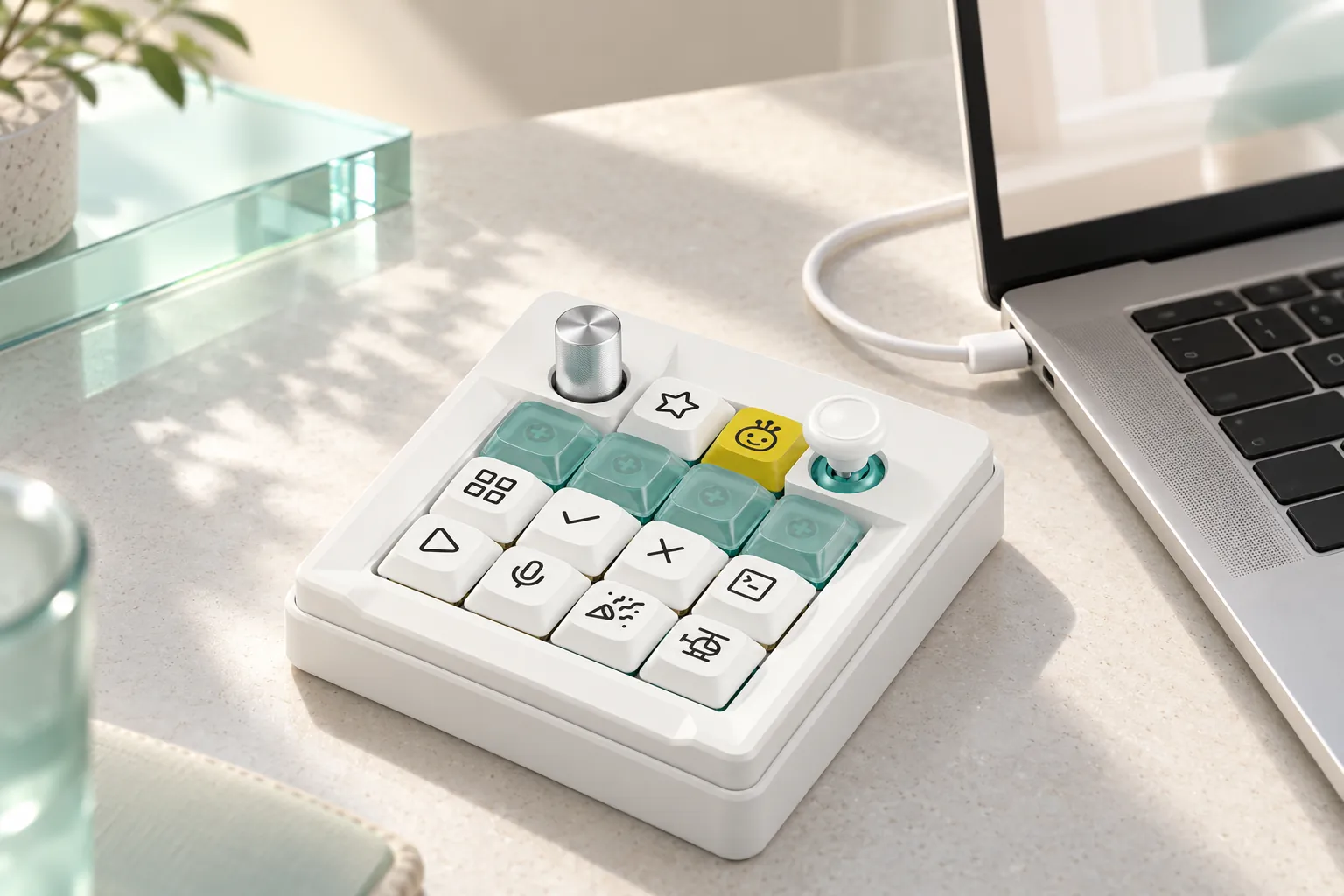 On the desk
Let it run; the clear key tells you when it’s done.
Lights up when it needs your OK, stays quiet otherwise.
Keep your head in the words; leave the switching to the keys.
04/ Speak & Act
Hold the voice key and say the whole request. Let go, and it’s with your AI.
“Go through the notes from just now and list the three key findings.”
A string of small steps,
handed to one familiar key.
Summon → speak → run
Set the voice key to “hold to talk”: holding it starts your AI tool’s voice input, letting go ends it. Other keys can send a shortcut, open an app, return to a task, control media, or run a sequence of steps.
05/ Control, Your Way
Turn and nudge: everyday controls, under your fingertips.
24 crisp detents per turn, and it clicks. Set clockwise, counter-clockwise and press separately: volume, tracks, mute, or the setting you reach for most.
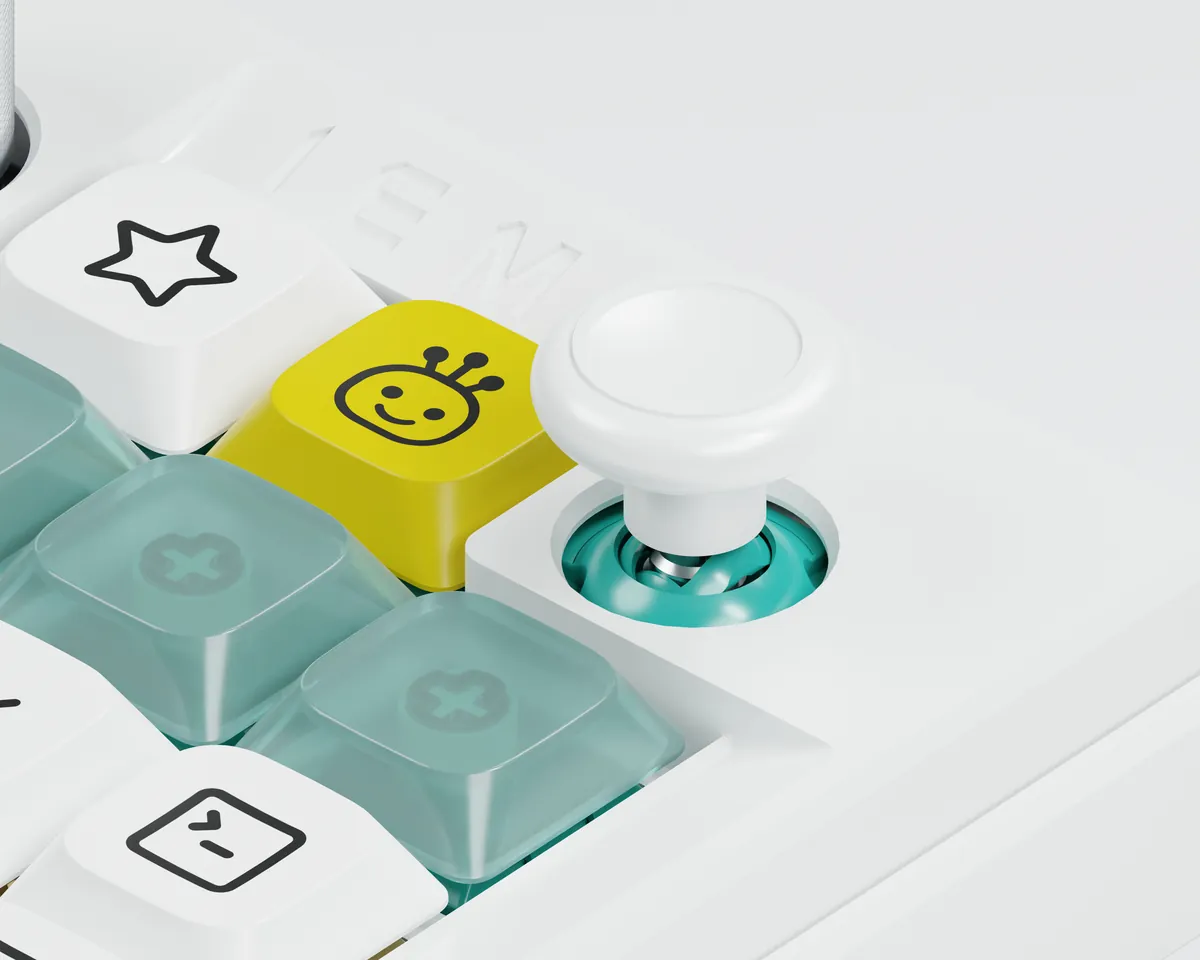
Contactless magnetic sensing, with a centre click. Use it as arrow keys, four custom keys, a mouse pointer, or a hold-and-drag for fine-tuning sliders and colour wheels.
06/ Touch The Details
The things you do most get a familiar place to land.
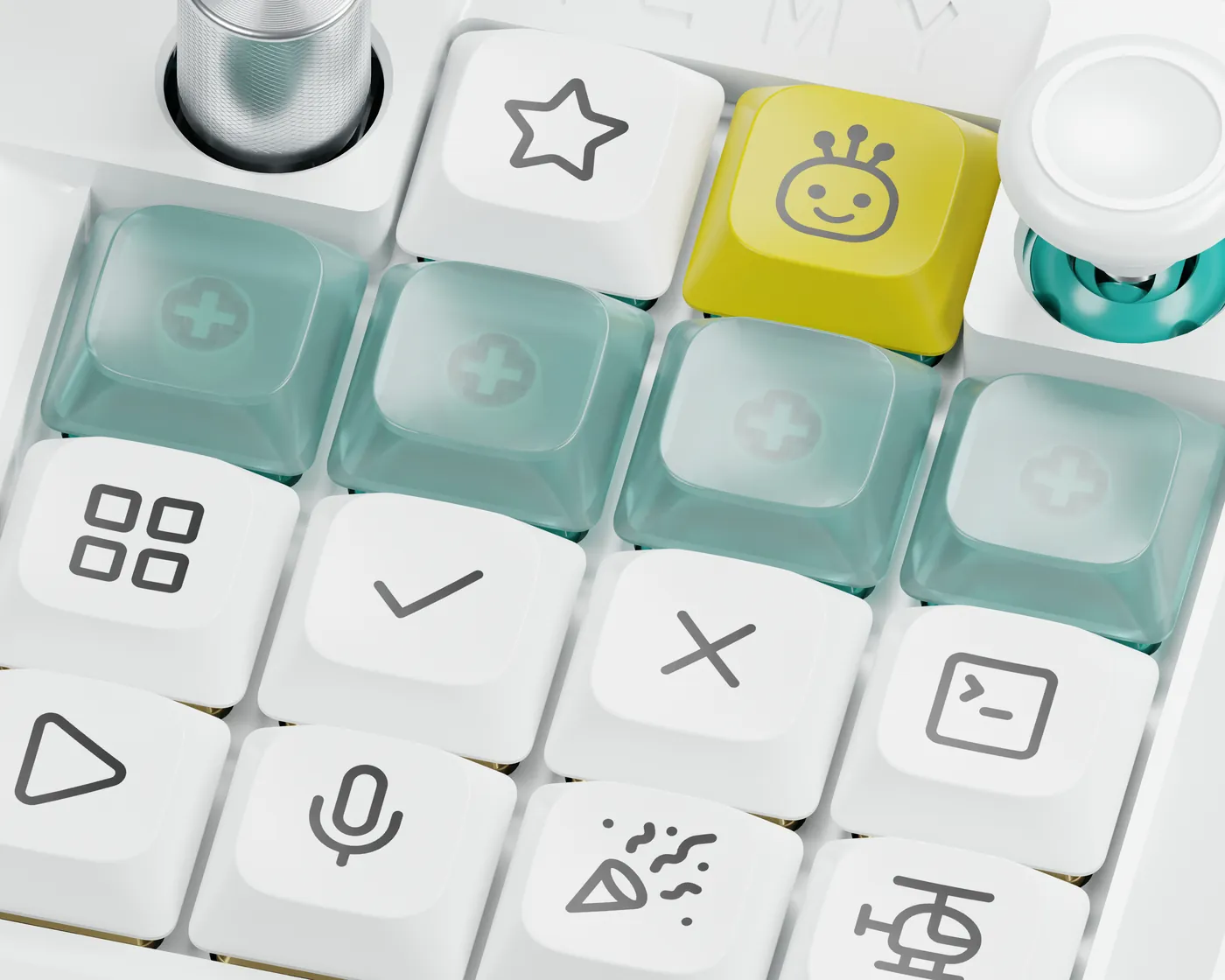
A low build that keeps desk controls light.
Everyday actions printed right on the keys.
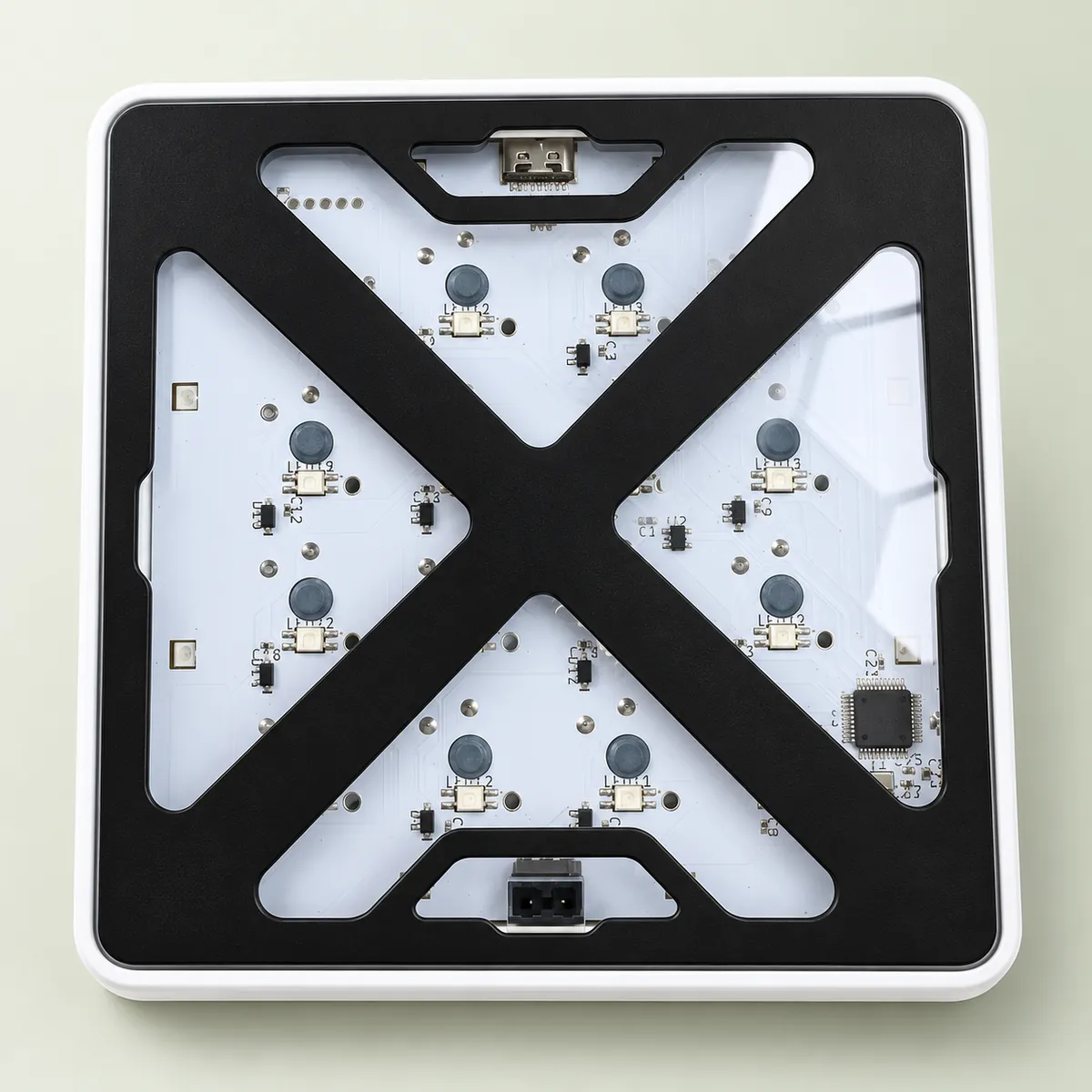
A black X frame, with the circuit showing through.
Works With
Connect them with one click on the app’s “AI tools” page. Once connected, their progress shows on the clear keys.





Each tool reports different events; the app shows what’s supported. Product names and logos belong to their owners and are shown only to indicate compatibility.
Get Started
Plug it in, and put the things you do most within reach.
Plug K01 in with a USB-C data cable. No driver needed. Keep your hands off the knob and joystick while it powers up.
Open the IEMY app and pick the AI tool you use most. Its shortcuts go on the printed keys; change them any time.
Connect your tools on the “AI tools” page. Glance, switch, and step in when you’re needed.
Plain keys, shortcuts and media keys are stored on K01 and work without the app. Status lights, opening apps, returning to tasks and sequences need the app running in the background.
Specifications
| Keys | 14 Kailh low-profile switches, including 4 clear status keys; dye-sublimated keycaps |
|---|---|
| Knob | Kailh rotary encoder, 24 detents per turn, push to click |
| Joystick | TMR magnetic joystick, contactless, push to click |
| Lighting | Per-key RGB plus underglow, adjustable brightness |
| Connection | Wired USB-C, bus-powered, driverless |
| On-board memory | Keeps the most recently synced key layout |
| Base | Open acrylic base with a black X frame |
| App | IEMY for macOS 11 or later (Apple silicon / Intel) and Windows 10 / 11 (64-bit) |
Download
Version 0.16.0 · includes K01 firmware 0.11.0; the app tells you when an update is needed.
Not sure which Mac you have? Open the Apple menu → “About This Mac” and look for “Chip” or “Processor”. Checksums are in SHA256SUMS.
Support
Make sure the USB-C cable carries data (some only charge), try another port, and plug straight into the computer rather than a hub.
Status lights need the IEMY app running, with the tool connected on the “AI tools” page. After connecting, start a new session in the AI tool. Doubao supports shortcuts only, without status lights.
Plain keys, shortcuts and media keys live on K01 and always work. Opening apps, returning to tasks, sequences and status lights are carried out by the app, so keep IEMY running in the background.
Open System Settings › Privacy & Security › Accessibility and make sure IEMY is switched on, then reopen IEMY. Plain keys sent by K01 itself don’t need this permission.
K01 learns the joystick’s centre when it powers up. Let go of the stick, unplug the cable and plug it back in. You can also adjust sensitivity in the app.
Reopen IEMY. It recognises K01 in recovery mode and walks you through reinstalling the firmware. To enter recovery mode by hand: unplug, hold the knob down while plugging back in, and let go once the app sees it.
K01 keeps the most recently synced key layout, so it works right away. To bring over all your setups, export them in the app on the old computer and import them on the new one.